Section “Compras | Vista general”
If you has not requested access to the program yet, please submit your request following the instructions here: link
This section is used to view, search, and monitor all uploaded expense documents and incoming supplier invoices in the Exact system. Here, the user can see a complete list of supplier documents, including their statuses, amounts, dates, and other relevant details.
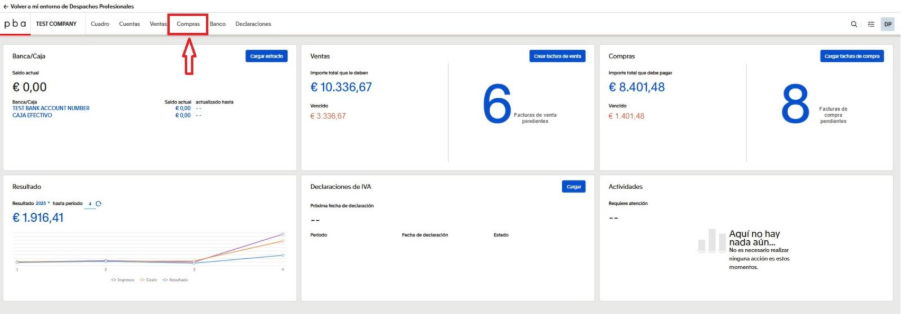
Main filters and search parameters
At the top of the screen, there are fields that allow you to find a specific invoice or a set of invoices using different criteria.
The user can configure the search using the following parameters:
• Fecha de facturación – allows you to set a range based on the actual invoice issue date from the supplier.
• Proveedor – search by the name of the supplier of the goods or services.
• Buscar una factura por nombre o referencia – allows you to find a document by the invoice number or any other text identifier.
• Estado – the status of the document in the system.
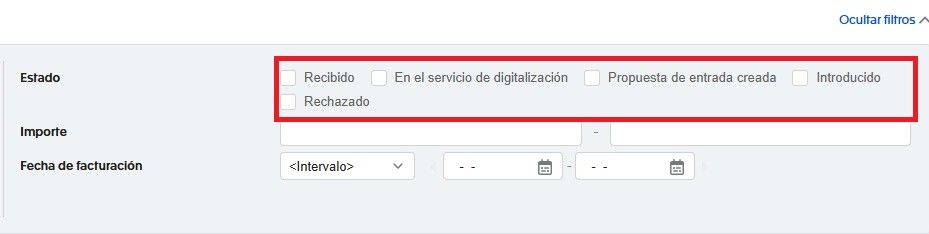
Recibido – received
Introducido – recorded as an expense
Rechazado – rejected
En el servicio de digitalización – pending processing
Propuesta de entrada creada – pending processing
- Importe – search by amount
Purpose of this section
This section provides a clear, up-to-date overview of all expenses. Users can monitor the status of each document and quickly identify items that require action.
Special attention should be paid to the Rechazado status. When a document is marked as Rechazado, it means it cannot be used for expense accounting or it has been identified as a duplicate. This typically occurs due to missing mandatory details or non-compliance with accounting or tax requirements. In such cases, the user may request a corrected invoice from the supplier and upload the revised document, or contact us to clarify the reason for the rejection.
Please note that the payment status “Estado del pago” and the section “Lista de pagos” are not included within the scope of the standard service for companies or individuals.